Learn how to install Android 15 Beta safely and easily. Follow this step-by-step guide to try the latest features, hidden settings, and improvements before the official release.
Android 15 is here in beta, and many users are excited to try the new features before the official release. From smoother performance to hidden tools, Android 15 offers a lot of improvements over Android 14.
In this guide, I’ll show you how to install Android 15 beta safely, step by step, on supported devices. You don’t need advanced skills. The steps are clear and easy. If you want a full list of the latest features first, you can check Android 15 Complete Guide.
Table of Contents
How to Install Android 15
1. Check Device Compatibility
Before installing the beta, make sure your device supports Android 15. Most phones that ran Android 14 are compatible, including:
- Google Pixel (latest and previous models)
- Samsung Galaxy flagships and mid-range phones
- OnePlus 10 series and newer
- Vivo, Oppo, Realme recent models
Tip: Beta features work best on supported phones. Installing on unsupported devices can cause issues.
2. Backup Your Device
Installing a beta version can sometimes cause bugs or crashes. To be safe:
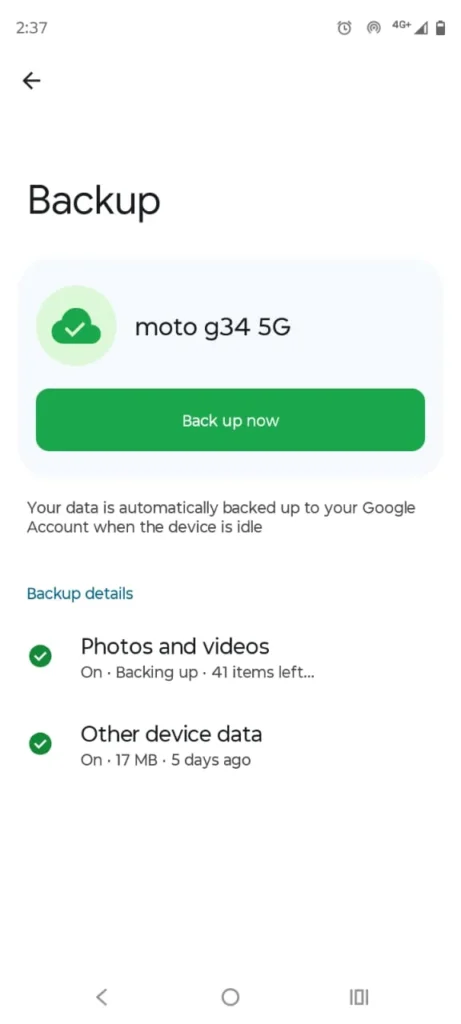
- Open Settings → System → Backup
- Make a full backup of your apps, contacts, and photos
- Optionally, back up to Google Drive or an external device
This ensures you can restore your data if anything goes wrong.
3. Join the Android Beta Program
Google offers the official Android Beta Program.
Steps:
- Visit the Android Beta Program page
- Sign in with your Google account
- Enroll your supported device
- Accept the terms and confirm
After enrollment, your phone will be eligible to receive the Android-15 beta update over the air.
4. Check for the Update
Once enrolled:
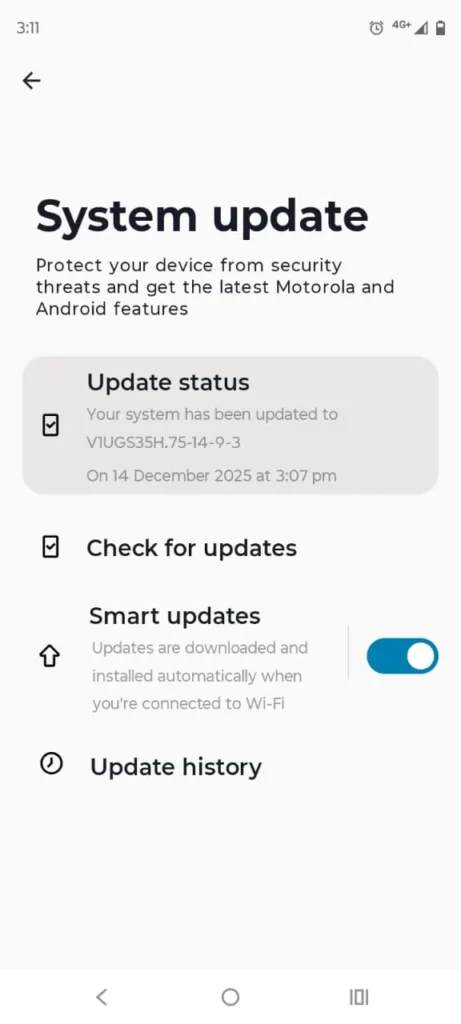
- Open Settings → System → System Update
- Tap Check for updates
- You should see the Android-15 Beta update ready to install
- Tap Download and Install
Tip: Make sure your device is charged above 50% and connected to Wi-Fi for a smooth download.
5. Install the Android 15 Beta
The installation is automatic after downloading.
- Tap Install
- Your phone will restart and begin updating
- The first boot may take longer than usual—this is normal
Once completed, you’ll be on Android-15 Beta and can explore all the new features.
6. Explore Hidden Features
Android 15 includes many hidden features and improvements over Android 14, like:
- App Pair for multitasking
- Notification Cooldown
- Per-app vibration controls
- Advanced privacy settings
For a full guide, check Android 15 Hidden Settings You Should Enable.
7. Report Bugs and Give Feedback
Beta versions are meant for testing. Google relies on users to report issues.
- Open Settings → System → Feedback
- Describe any problems
- Submit logs if requested
Your feedback helps improve the final Android-15 release.
8. How to Roll Back (Optional)
If you face serious issues or want to revert to Android 14:
- Go to the Android Beta Program page
- De-enroll your device
- Follow on-screen instructions to restore Android 14
Tip: Backups are crucial before rolling back.
Final Thoughts
Installing the Android 15 Beta is a great way to try new features, hidden settings, and performance improvements before the official release. By following this step-by-step guide, you can safely test Android-15 without risking your data.
Even exploring a few new tools can make your phone faster, smarter, and more enjoyable.
You can also read my related blogs below:
- Android-15 Hidden Features You Should Try
- Android-15 vs Android 14: What Really Changed?
- Best Android-15 Tips and Tricks for Everyday Users
- Android-15 Complete Guide.
FAQs: Android 15 Beta Installation
1. Can anyone install Android 15 Beta?
No, not everyone can install Android-15 Beta.
Android-15 Beta is available only for supported devices, mainly Google Pixel phones (Pixel 6 and newer). Some brands like Samsung, OnePlus, and Xiaomi may offer limited beta programs later, but they require registration.
Also, beta versions may have bugs, so they’re best for advanced users, not everyone.
2. Will my apps work on the beta?
Most apps will work on the Android-15 Beta, but not all of them.
Popular apps like WhatsApp, Instagram, YouTube, and Gmail usually run fine. However, some banking apps, work apps, or games may crash, run slower, or block beta versions for security reasons. Because the beta is still in testing, small bugs and compatibility issues are common.
3. How long does the beta last?
The Android-15 beta usually lasts a few months.
It starts in early testing phases and continues until the stable version is released, which is typically later in the year. During this time, Google releases multiple beta updates to fix bugs, improve performance, and finalize features before the public rollout.
4. Can I uninstall the beta?
Yes, you can uninstall the Android 15 beta, but there’s an important catch.
To leave the beta and go back to the stable Android version, you usually need to wipe your phone, which means all data will be erased. That’s why backing up your data before installing or removing the beta is very important.
5. Is Android 15 Beta stable?
Android-15 Beta is mostly stable, but not perfect.
You can use it for daily tasks like calls, apps, and browsing, but small bugs, battery drain, or app issues may still appear. It’s fine for tech-savvy users, but if you need a fully reliable phone, it’s better to wait for the stable release.
6. Is it safe to install Android 15 beta?
Yes — installing the Android 15 beta is generally safe, but with some important cautions.
✅ What’s Safe
- The official beta from Google is legitimate and won’t harm your phone.
- It won’t void your warranty if installed through official beta channels.
- You can test new features early.
⚠️ What You Should Know
- Betas can be less stable than regular releases — you may see bugs, crashes, battery drain, or app compatibility issues.
- Some apps (especially banking or security apps) might not work properly yet.
- Uninstalling the beta typically requires a full data wipe, so you must back up your data first.
📌 Bottom Line
It’s safe if you back up data, expect occasional glitches, and understand it’s a test version. If you prefer a smooth, reliable everyday experience, waiting for the stable release is better.
7. How much RAM is needed for Android 15?
Android 15 can run on as little as 4GB RAM, but that’s the minimum.
For a smooth experience, 6GB RAM is recommended, especially if you use multiple apps, games, or multitasking. Phones with 8GB RAM or more feel faster, handle Android 15’s new features better, and stay smooth for longer in daily use.