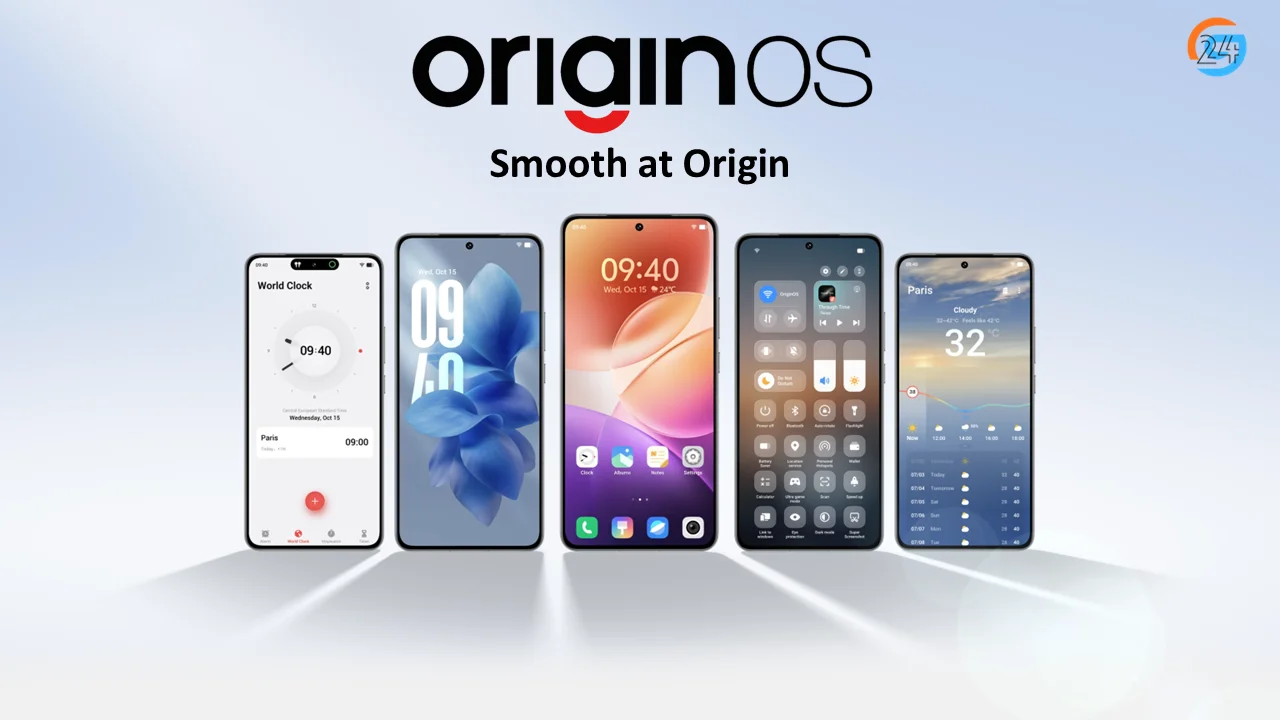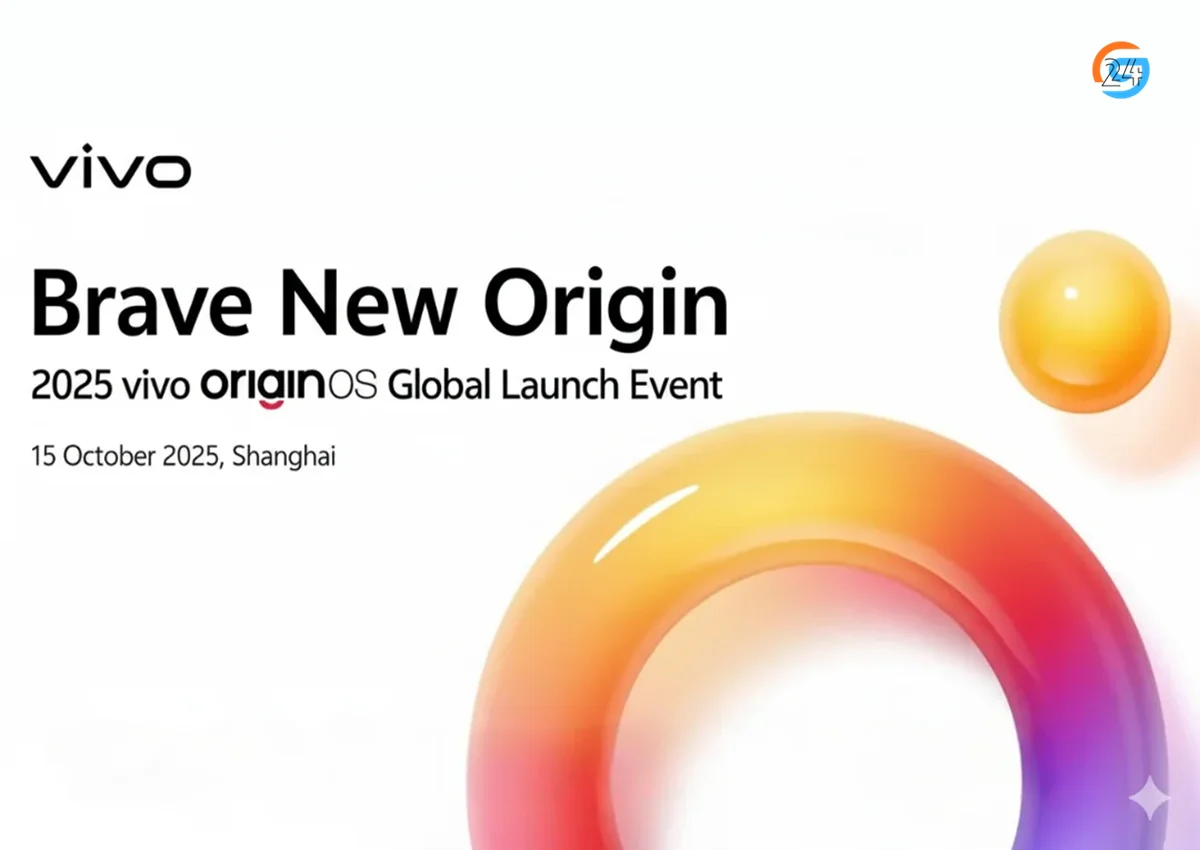
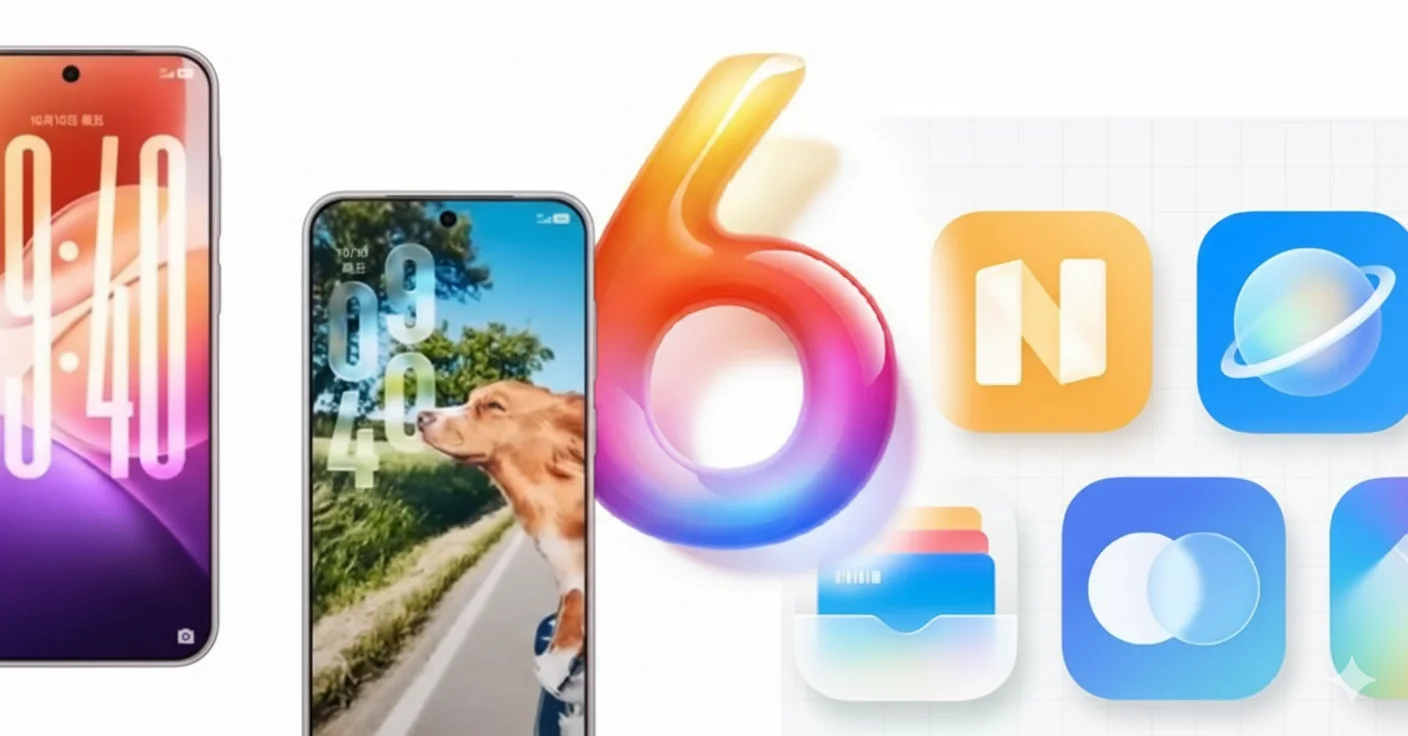
How to update to OriginOS 6 safely on Vivo and iQOO phones. Step-by-step guide covering supported devices, beta vs stable updates, and fixes.
OriginOS 6 is not a small patch. It’s a major system update that changes how your phone looks, feels, and performs. If you update without checking compatibility, backing up data, or understanding the difference between beta and stable versions, you can face issues like battery drain, app crashes, or even data loss. I’ve seen this happen to real users, and it’s not a good experience.
This update is mainly for Vivo OriginOS 6 and iQOO OriginOS 6 devices, but not all phones receive it at the same time. Some get the OriginOS 6 stable update, while others may only see the OriginOS 6 beta first. Knowing which one you’re installing is very important.
In this step-by-step guide, I’ll clearly explain:
- Which phones support OriginOS 6
- The safest official update method
- How to download beta updates if needed
- Manual update options and risks
- Common problems and easy fixes
By the end, you’ll know exactly what to do—without fear or confusion.
Read the complete OriginOS 6 guide to explore all new features, supported devices, and update instructions: originos-6-complete-guide
Table of Contents
How to Check Before Updating to OriginOS 6
Before starting the update, take a few minutes to prepare. These steps may feel boring, but they make a huge difference.
1. Check Device Compatibility
First, confirm that your Vivo or iQOO phone is eligible for the OriginOS-6 update.
You can find OriginOS 6 Supported Devices
Go to: Settings → About phone → Model number
One important thing many users miss is the China vs Global model difference.
OriginOS usually comes to China variants, while global models often run Funtouch OS. Even if two phones look identical, the software can be different.
If your device isn’t listed as eligible, forcing an update can cause serious problems.
2. Backup Your Data (Important)
I can’t stress this enough—backup everything.
Things to back up:
- Photos and videos
- Contacts and call history
- WhatsApp chats
- Important documents
You can use:
- Google backup (easy and reliable)
- Local Vivo/iQOO backup from system settings
📌 Pro Tip: Skipping backups feels fine until something goes wrong. Then it feels like a nightmare.
3. Battery, Storage & Internet
Make sure your phone meets these basic requirements:
- Battery: At least 50% (70% is safer)
- Storage: 6–10 GB free space
- Internet: Strong Wi-Fi connection
Updates are large files. If the battery dies or Wi-Fi disconnects during installation, the update can fail.
Official Method: Update OriginOS 6 via Settings (Step-by-Step)
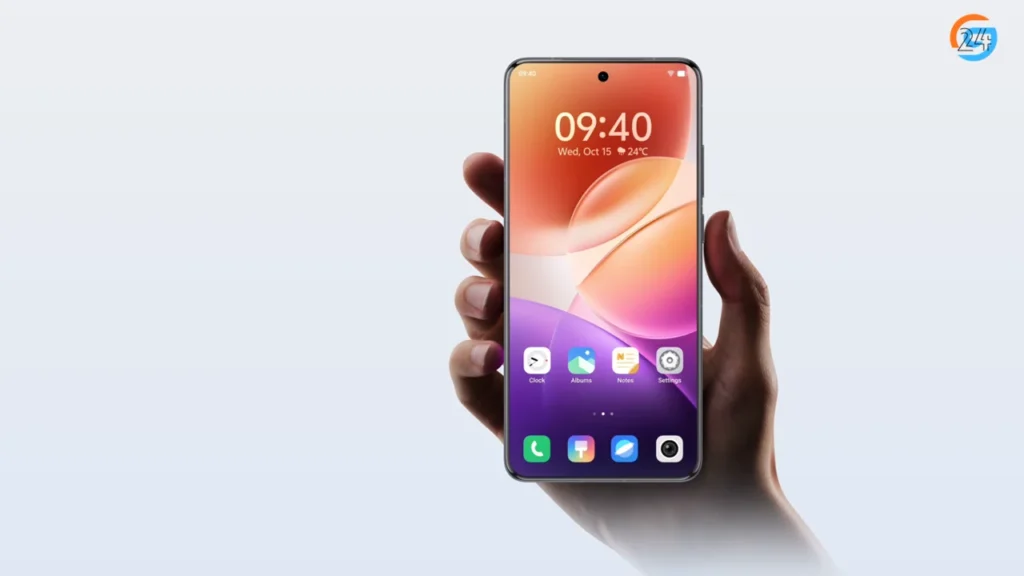
This is the safest and recommended way to install OriginOS-6.
Step 1: Open Settings
Unlock your phone and go to: Settings → System Update / Software Update
The exact wording may vary slightly depending on your device.
Step 2: Check for OriginOS 6 Update
Tap Check for updates.
If OriginOS 6 is available for your phone, you’ll see it here.
If not, don’t panic. Updates roll out in stages, not all at once.
OTA (Over-The-Air) updates depend on:
- Device model
- Region
- Rollout phase
Flagship phones usually receive updates first.
Step 3: Download the Update
Tap Download when the update appears.
Things to keep in mind:
- File size can be several gigabytes
- Download may take time on slow Wi-Fi
If the download pauses:
- Check your internet
- Disable battery saver
- Keep the screen on for a while
Step 4: Install OriginOS 6
Once the download finishes, tap Install.
- Installation takes around 10–20 minutes
- Your phone will reboot automatically
- Don’t press buttons or try to use the phone
Step 5: First Boot After Update
The first boot may feel slow. That’s normal.
Your phone is:
- Optimizing apps
- Adjusting system files
- Completing background tasks
You may notice slight lag for a few hours. It usually disappears on its own.
📌 Tip: Adding screenshots of each step makes this process easier for beginners.
How to Join OriginOS 6 Beta Program (If Update Not Available)
If the stable update isn’t showing, the OriginOS 6 beta might be an option.
Who Should Join the Beta?
Beta updates are for:
- Curious users
- Tech enthusiasts
- Secondary phones
Avoid beta if:
- You rely on your phone daily
- You want maximum stability
Steps to Apply for Beta
- Install the Vivo or iQOO Community app
- Sign in with your account
- Find the Beta Program section
- Apply for OriginOS 6 beta
- Wait for approval
Once approved, the update will appear in your system updater.
Risks of Beta Builds
Beta versions may have:
- Battery drain
- App crashes
- Heating issues
How to Exit Beta Safely
Exiting beta usually requires:
- Waiting for stable release
- Sometimes a factory reset
If stability matters, waiting for the stable update is the smarter move. You can read more in the OriginOS 6 beta vs stable guide.
Manual Update Method (Advanced Users Only)
This method is not recommended for most users.
When Manual Update Is Used
Manual updates are usually done when:
- OTA update doesn’t appear
- Device recovery is needed
- Testing purposes
Why It’s Risky
Manual updates can:
- Void warranty
- Cause boot loops
- Permanently damage your phone
Basic Manual Update Overview
- Download official firmware only
- Use the phone’s local update option
- Follow official instructions carefully
⚠️ Warning: Never install unofficial ROMs. One wrong file can brick your phone.
OriginOS 6 Update Not Showing? Try These Fixes
If your phone is eligible but the update isn’t visible:
- Be patient with phased rollout
- Restart your phone
- Clear updater app cache
- Check storage space
- Avoid risky region changes
- Follow official Vivo or iQOO announcements
Many times, the update appears after a few days without doing anything.
What to Do After Updating to OriginOS 6
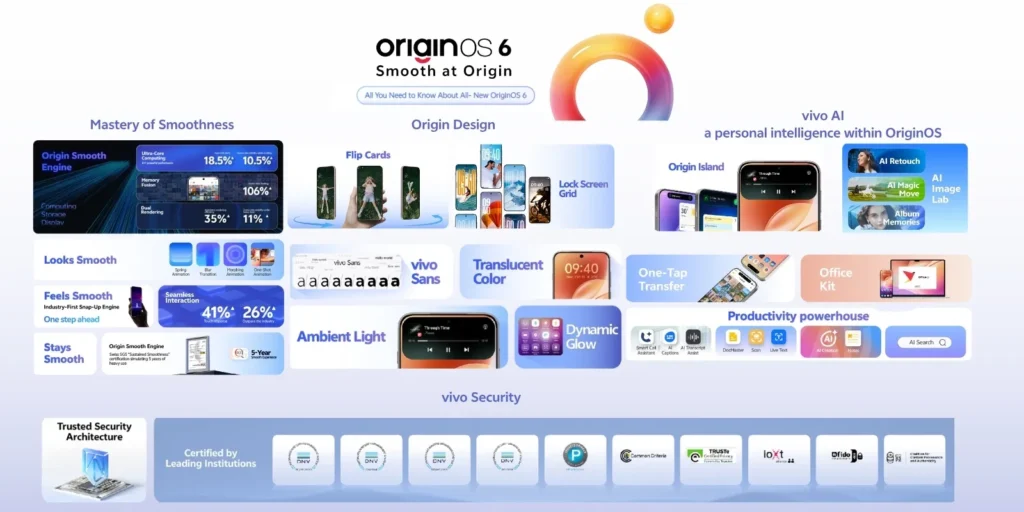
After updating, give your phone some care.
- Explore new OriginOS-6 features
- Review app permissions
- Enable battery optimization
- Update all apps
- Restart the phone once
These small steps help improve performance and battery life.
For a full breakdown, check the OriginOS 6 new features guide.
Common Issues After OriginOS 6 Update & Solutions
Battery Drain
- Give the system 1–2 days
- Restrict unused apps
Heating Issues
- Avoid heavy gaming initially
- Update all apps
App Crashes
- Clear app cache
- Reinstall affected apps
Network or Fingerprint Issues
- Reset network settings
- Re-register fingerprints
Factory Reset (Last Option)
Only reset if problems continue after several days—and only after backup.
Final Thoughts
Updating to OriginOS-6 can feel exciting, but rushing into it isn’t smart. Checking device compatibility, backing up data, and using the official update method makes the process smooth and safe.
If the update isn’t available yet, patience helps more than risky shortcuts. Stable updates always arrive after testing.
You can also read my related blogs below:
For official details and updates, check the OriginOS 6 official page.
A careful update today leads to a better phone experience tomorrow.
FAQs – How to Update to OriginOS 6
1. How to update to Origin OS 6?
- Check eligibility
Go to Settings → About phone and confirm your Vivo or iQOO model supports OriginOS-6. - Backup your data
Save photos, contacts, and WhatsApp using Google or local backup. - Update via Settings (Official way)
Open Settings → System Update / Software Update → Check for updates.
If OriginOS-6 appears, download and install it. - Wait for phased rollout
If the update isn’t visible, it may arrive later due to staged release. - Beta option (optional)
Use the Vivo/iQOO Community app to join the OriginOS-6 beta, only if you’re okay with bugs.
📌 Tip: Use Wi-Fi, keep battery above 50%, and avoid manual updates unless you’re experienced.
2. Is Origin OS 6 available in India?
Yes — OriginOS 6 is available in India and is rolling out to eligible Vivo and iQOO phones in phases starting November 2025. Vivo officially announced the Android-16-based OriginOS-6 update for India, beginning with flagship models like the Vivo X200 series, Vivo X Fold5, V60, and iQOO 13, with more devices scheduled through mid-2026.
3. Will Vivo V60 get origin os 6 update?
Yes, the Vivo V60 is expected to receive the OriginOS 6 update. Vivo has included the V60 series in its planned update roadmap. The rollout will happen in phases, so the update may arrive gradually depending on region and variant. Users should watch for OTA notifications.
4. What is the latest version of OriginOS?
The latest version of OriginOS is OriginOS 6. It is Vivo’s newest operating system update, designed for Vivo and iQOO smartphones. OriginOS-6 focuses on smoother performance, improved animations, better battery efficiency, enhanced privacy controls, and smarter system features for daily use.
5. Is OriginOS 6 free to update?
Yes, the update is completely free.
6. How long does the update take?
Download time varies. Installation usually takes 10–20 minutes.
7. Will OriginOS 6 delete my data?
No, but backups are strongly recommended.
8. Can I downgrade after updating?
Downgrading is possible but risky and not advised for most users.
9. Is OriginOS 6 available in India?
OriginOS is mainly China-focused. Indian models usually receive Funtouch OS instead.