
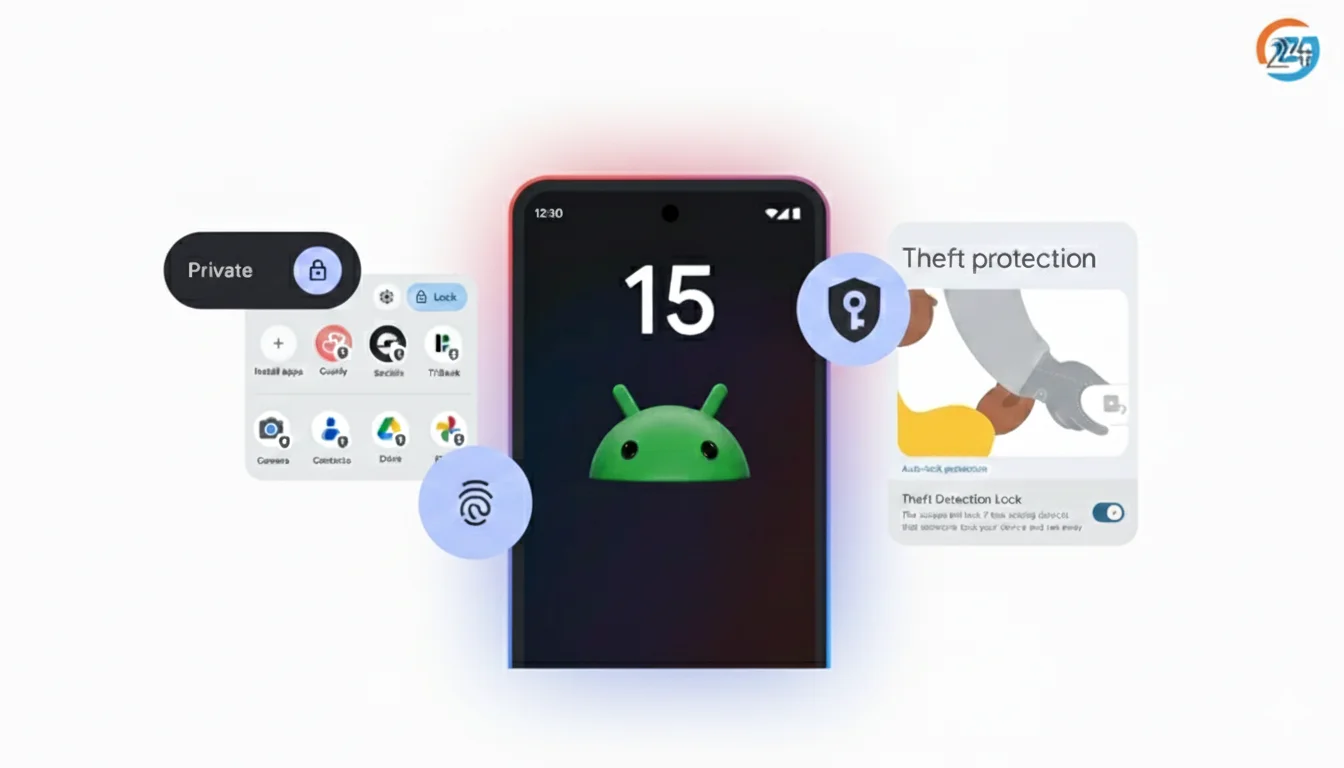
Discover all the hidden settings in Android 15 with a simple step-by-step guide. Learn how to enable secret features, improve performance, boost privacy, and unlock powerful tools easily.
When I first updated my phone to Android 15, I noticed that the biggest improvements were not the ones Google talked about. The real power sits inside the hidden settings—features that stay buried in deep menus, advanced options, and experimental tools. These options make the phone faster, safer, and smarter, but most people never see them. So, I created this complete list of Android 15 hidden features and secret settings you should enable right now. Every feature here is safe, useful, and designed to upgrade your experience without installing anything extra.

If you want to explore the official technical details, you can check out Google’s documentation here: Android-15 Official Documentation
Table of Contents
Why Android 15 Hidden Features Matter
Most users stick to the basics of Android, but Android-15 hides many advanced features that:
• Improve battery life
• Boost performance
• Strengthen privacy
• Add new customization options
• Reduce background misuse from apps
If you want your phone to work better without rooting or using third-party tools, these hidden features will help you get more control.
All Android 15 Hidden Features You Should Enable
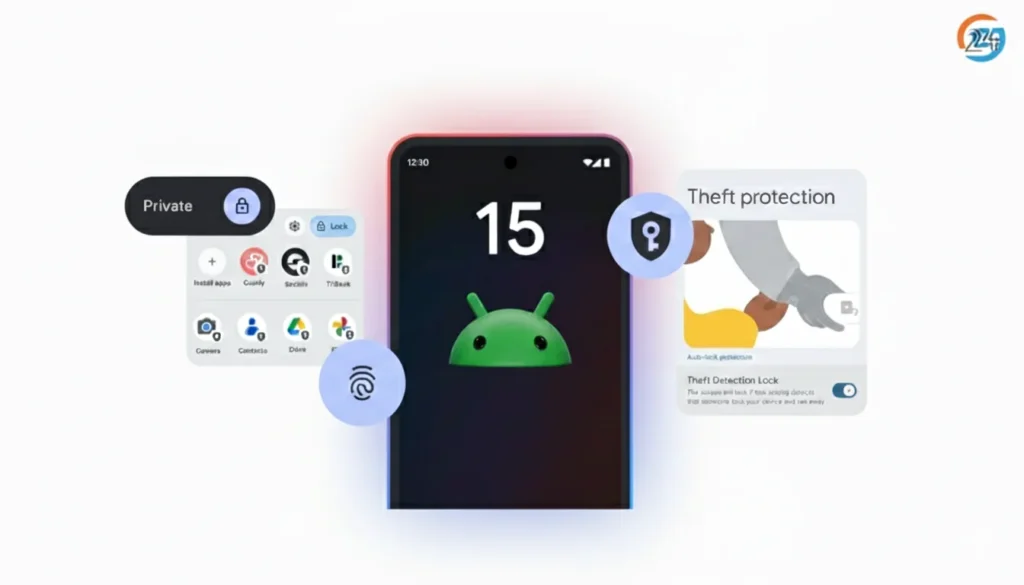
Below are the most important hidden settings inside Android 15. I kept each explanation simple and clear so anyone can follow.
1. Allow Partial Screen Sharing
Android 15 now lets you share only one app instead of your full screen.
How to enable:
- Open Settings
- Go to Privacy
- Tap Screen Sharing
- Turn on Partial Screen Sharing
This protects your notifications and personal content while sharing your screen during calls.
2. Smart Battery Health Tools
Android 15 adds advanced battery health features that many users miss.
How to enable:
- Open Settings
- Select Battery
- Tap Battery Health
- Enable Optimized Charging
- Enable Background App Stability
This reduces battery drain and keeps your phone healthy longer.
If you want more ideas to improve your experience, you can read some useful Android 15 tips and tricks anytime.
3. App Hibernation Plus
This feature quietly disables apps you don’t use.
Steps:
- Go to Settings
- Tap Apps
- Choose Unused Apps
- Turn on Hibernation
- Toggle Auto Remove Permissions
Your device stays cleaner, faster, and more secure.
4. Private Space 2.0 (Upgraded Privacy Mode)
Private Space hides apps, files, and notifications behind a separate lock.
Steps:
- Go to Settings
- Tap Security & Privacy
- Select Private Space
- Choose Create Private Profile
- Set PIN or biometric lock
If you want a cleaner privacy comparison, you can later check how Android 15 differs from Android 14 in this area.
5. Adaptive Touch Sensitivity
Useful for users with screen protectors.
How to enable:
- Open Settings
- Select Display
- Tap Touch Sensitivity
- Turn on Adaptive Sensitivity
This adjusts touch response based on your environment.
6. Notification Cooldown
This feature reduces repeated alerts from the same app.
Steps:
- Go to Settings
- Tap Notifications
- Turn on Notification Cooldown
It slowly reduces sound or vibration when messages come too frequently.
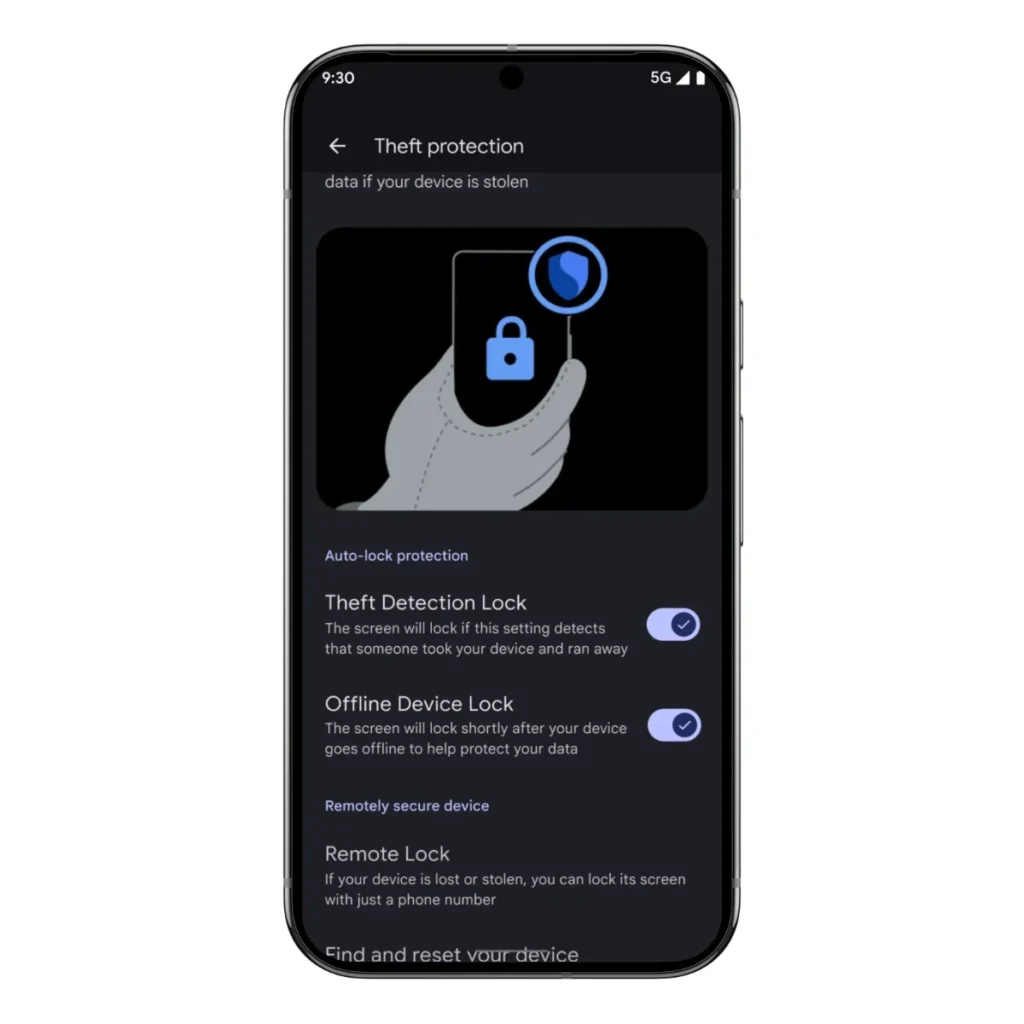
7. Enhanced Theft Detection Lock
Android 15 adds motion-based theft protection.
steps:
- Open Settings
- Select Security & Privacy
- Tap Theft Detection Lock
- Turn on Auto Lock When Snatched
If your phone is snatched or moved unusually fast, it locks instantly.
8. Predictive App Launching
This speeds up frequently used apps by preloading them in the background.
Steps:
- Go to Settings
- Tap System
- Select Performance & Optimizations
- Enable Predictive App Launch
Your phone feels smoother without extra battery drain.
9. App-Specific Vibration Control
Android 15 lets you set custom vibration levels for each app.
Steps:
- Go to Settings
- Tap Sound & Vibration
- Select Per-App Vibration
- Adjust strength individually
A small feature, but very useful in daily use.
10. High-Accuracy WiFi Scan Toggle
This setting improves indoor location accuracy and reduces WiFi issues.
Steps:
- Open Settings
- Tap Location
- Turn on High-Accuracy Scanning
Ideal for smart home users and location-based apps.
11. App Pairing for Split Screen
Android 15 allows saving two apps together for instant multitasking.
Steps:
- Open two apps in split-screen
- Tap the Split-Screen Options Menu
- Choose Save App Pair
Next time, you can launch both together with one tap.
12. Advanced Media Controls
This hidden setting improves playback and audio focus.
Steps:
- Go to Settings
- Tap Sound & Vibration
- Select Media Control Settings
- Turn on Focus Optimization
Audio interruptions become less annoying.
13. Gesture Navigation Tweaks
Android 15 lets you customize gesture sensitivity.
Steps:
- Open Settings
- Tap System
- Select Gestures
- Adjust Back Gesture Sensitivity and Edge Protection
Makes navigation smoother.
14. Emergency SOS Auto-Record
This feature privately records audio during emergencies.
Steps:
- Open Settings
- Tap Safety & Emergency
- Enable Auto Record
The recording stays on your device.
15. Lockdown Mode Shortcut
A must-have privacy setting.
Steps:
- Go to Settings
- Select Security & Privacy
- Tap Lock Screen
- Turn on Show Lockdown Option
This disables fingerprint unlock and notifications on your lock screen instantly.
You can also read my related blogs below:
- Android-15 Hidden Features You Should Try
- Android-15 vs Android 14: What Really Changed?
- How to Install Android-15 Beta Step-by-Step
- Best Android-15 Tips and Tricks for Everyday Users
- Android-15 Complete Guide.
Final Thoughts
These Android 15 hidden features might look small, but together they make the experience faster, safer, and much smoother. I always enjoy exploring deep settings, and Android 15 feels more polished than older versions.
Turn on the features that match your usage style. Even enabling three or four of them will improve your phone instantly.
Android 15 FAQs
1. What are the new new features in Android 15?
Android 15 introduces stronger privacy controls, smarter permission management, improved battery health tools, smoother performance, better multitasking, enhanced security features, refined UI animations, advanced notification controls, smarter AI-powered suggestions, improved camera processing, adaptive touch sensitivity, theft detection lock, and more customization options for a safer, faster, user-friendly experience.
2. Does Android 15 have a security feature?
Yes. Android-15 includes several new and improved security features designed to keep your phone and data safer.
It adds enhanced theft detection, which can automatically lock your phone if it detects suspicious movement. Android-15 also improves app permission controls, private space protection, auto-reset permissions, and stronger app sandboxing, giving you better control over privacy and security without extra apps.