Learn how to download and install the Android 16 beta, explore new features, supported devices, common bugs, and what to expect before updating your phone.
The moment I hear the word beta, I feel two things at the same time.
Excitement… and a little fear.
Excitement because I get to see the future early.
Fear because beta updates love to surprise you at the worst time.
That’s exactly how the Android 16 beta feels right now. It’s shiny, new, and tempting. But it also asks for patience and understanding. In this guide, I’ll walk you through what the Android 16 beta really is, how to download and install it safely, and what you should honestly expect before tapping that “Install” button.
I’ll explain everything the same way I’d explain it to a friend or even a younger cousin. Simple words. Clear steps. No tech stress.
If you want to explore the official technical details, you can check out Google’s documentation here: Android 16 Official Documentation
Table of Contents
What Is Android 16 Beta, in Simple Words?
The Android 16 beta is an early version of the Android-16 update. Google releases it before the final version so people can test new features and report problems.
Think of it like tasting food while it’s still cooking.
You get a good idea of the flavor, but the dish isn’t fully ready yet.
This beta version shows:
- New Android 16 features
- Design changes
- Performance improvements
- Early bugs and glitches
It’s not meant for everyone. It’s mostly for curious users, developers, and people who like experimenting.
Who Should Try the Android 16 Beta?
I’ll be honest here.
If you use one phone for everything—work calls, school, banking, photos—then beta software can feel stressful.
You should try Android-16 beta if:
- You enjoy testing new features early
- You don’t panic when something breaks
- You have a secondary phone
- You use a Pixel phone
You should avoid Android-16 beta if:
- You depend on your phone daily
- You hate bugs
- You need perfect battery life
- You don’t like troubleshooting
I once installed a beta update before a family function. My camera app crashed right when I wanted photos. Lesson learned.
Android 16 Beta Supported Devices (Who Can Install It?)
Not every phone can install the Android 16 beta. Google always starts with Pixel devices.
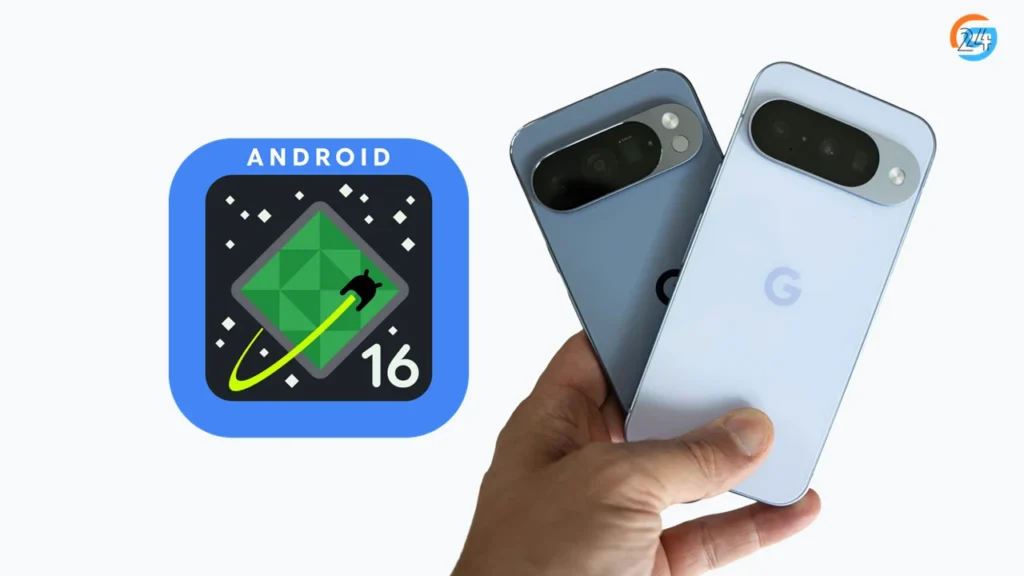
Android 16 Pixel Update – Eligible Phones
- Pixel 9 / 9 Pro
- Pixel 8 / 8 Pro
- Pixel 8a
- Pixel 7 / 7 Pro
- Pixel 7a
- Pixel 6 / 6 Pro
- Pixel 6a
Other brands may join later, but Pixel phones always get first access.
If your phone is not on this list, you’ll need to wait for the stable Android-16 update.
Android 16 Beta Release Date: When Did It Arrive?
Google follows a familiar pattern every year.
- First Android 16 beta: Early 2025
- More beta updates: Following months
- Stable Android 16 release date: Late 2025
The beta phase helps Google fix problems before releasing Android-16 to everyone.
Android 16 Beta Download: Before You Install, Do This First
Before installing the Android-16 beta, pause for a moment. Preparation matters.
Things I Always Do Before Installing Beta
- Charge battery above 70%
- Backup photos, contacts, and files
- Update all apps
- Make sure Wi-Fi works properly
Skipping backup is a mistake people regret later. I’ve seen friends lose photos they thought were safe.
How to Download and Install Android 16 Beta (Step-by-Step)
Installing Android 16 beta isn’t complicated, but it needs attention.
Step 1: Join the Android Beta Program
- Open a browser on your Pixel phone
- Search for Android Beta Program
- Sign in with your Google account
- Select your device
- Tap Join Program
Step 2: Wait for Confirmation
Google usually takes a few minutes to enroll your device.
Step 3: Check for Android-16 Beta Update
- Open Settings
- Go to System
- Tap Software update
- Check for updates
You’ll see the Android-16 beta download option.
Step 4: Install the Update
- Tap Download and install
- Wait patiently
- Phone will restart
That’s it. No computer needed.
First Impressions: What Android-16 Beta Feels Like
The first boot always feels exciting. The phone looks familiar, but something feels different.
Android-16 beta focuses more on:
- Smooth animations
- Better background app control
- Improved privacy indicators
It doesn’t scream “new” immediately. The changes feel subtle, like rearranged furniture in a room you already know well.
Android 16 New Features You’ll Notice Early
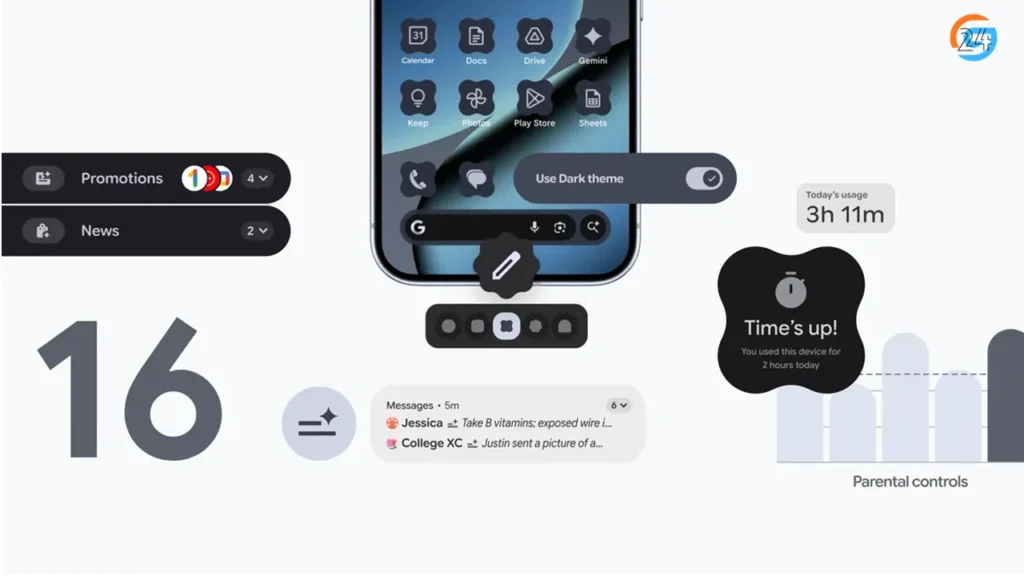
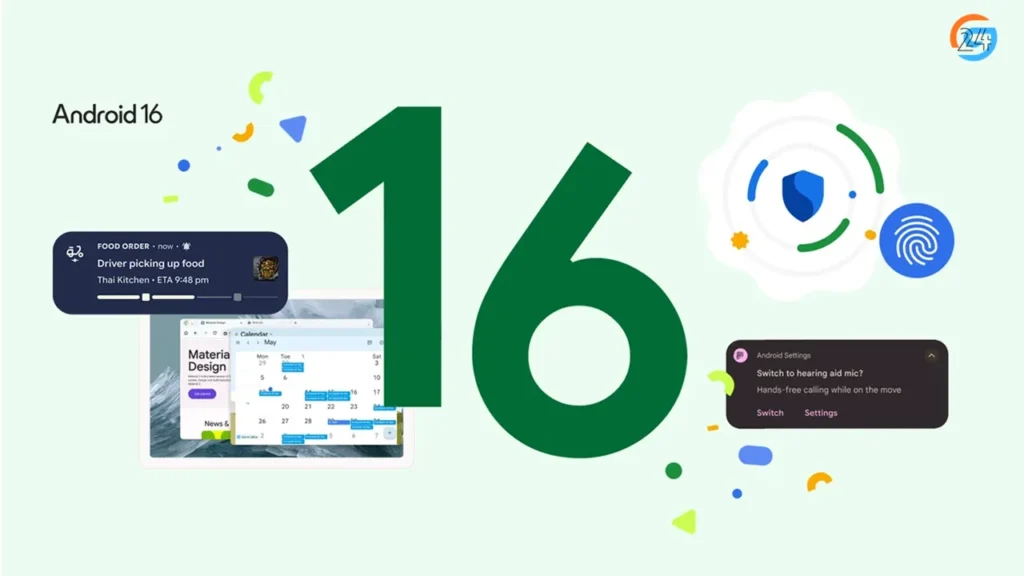
Some Android 16 features show up clearly in the beta.
1. Better Battery Behavior: Apps behave more responsibly in the background. My phone felt slightly cooler after long use.
2. Privacy Improvements: Permissions feel more transparent. The system tells you clearly when apps access sensitive data.
3. UI Polish: Small animation changes make scrolling feel smoother. Nothing dramatic, but pleasant.
4. Performance Tweaks: Apps open faster, especially system apps like settings and camera.
Not all features appear in the first beta. Google adds more with each update.
Bugs I Noticed (Yes, They Exist)
Let’s be honest.
The Android-16 beta is not perfect.
Common issues include:
- Random app crashes
- Battery drain on some days
- Heating during heavy use
- Banking apps not working
One evening, my food delivery app refused to open. I laughed it off, but it reminded me why beta software needs patience.
Android 16 Beta vs Stable Update: What’s the Difference?
This question comes up a lot.
Android 16 Beta
- Early access
- Bugs included
- Frequent updates
- For testers
Android 16 Stable Update
- Polished experience
- Fewer bugs
- Better battery life
- Safe for everyone
If you enjoy stability, waiting for the final Android-16 update is the smarter move.
How to Leave Android 16 Beta Safely
Leaving beta is possible, but it comes with a warning.
If you exit the beta program:
- Your phone may reset
- Data can be erased
Always backup before leaving.
I personally stay on beta only if I feel comfortable dealing with resets.
Will Android 16 Beta Affect Daily Life?
For casual users, yes.
You may notice:
- Slight battery issues
- App compatibility problems
- Occasional lag
For tech lovers, these issues feel manageable. For kids, parents, or elders, beta software can feel confusing.
That’s why I always say: beta is optional, not necessary.
Android 16 Update: Should You Wait or Install Beta?
Here’s my honest advice.
If curiosity excites you more than stability, try the Android-16 beta.
If reliability matters more, wait for the stable release.
Both choices are valid.
Technology should feel helpful, not stressful.
Final Thoughts: Is Android 16 Beta Worth Trying?
The Android 16 beta feels like a preview of a calmer, smoother Android future. It doesn’t try to shock you with big changes. Instead, it quietly improves how things work.
I enjoy beta testing because it helps me understand what’s coming. But I never forget that beta software asks for patience.
If you decide to install it, go in with the right mindset. Expect small problems. Enjoy new features. And always keep a backup.
If you decide to wait, that’s perfectly fine too. Android-16 will arrive soon enough, fully polished and ready.
I’ll keep updating this guide as new Android-16 beta versions roll out. Save it, share it, and come back anytime you need help.